How to Scan Film Negatives at Home Without a Scanner
No scanner? No problem. Convert negatives to digital photos at home using just your smartphone and a bright screen — free, fast, and surprisingly accurate.
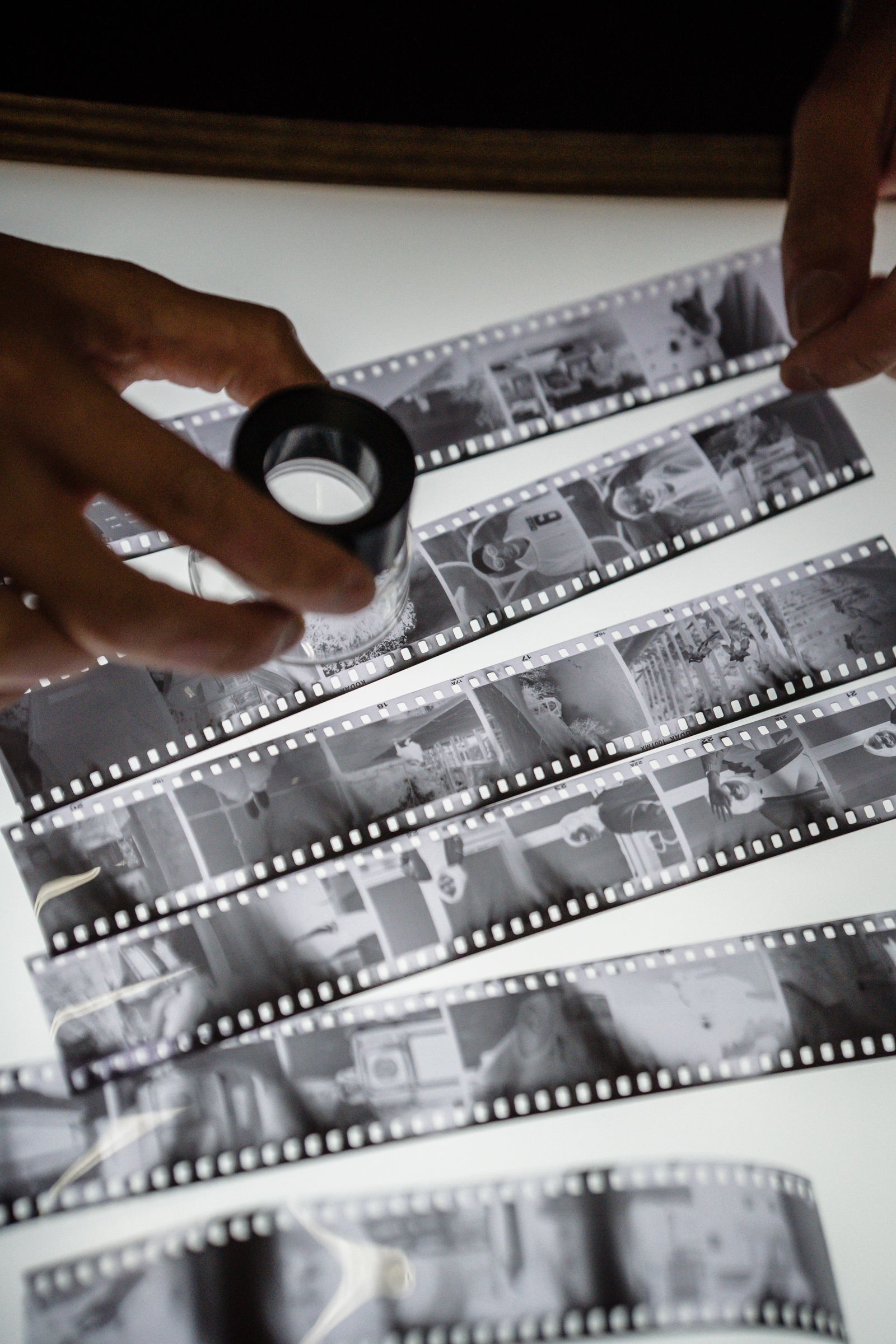
You found a box of old film negatives in a drawer. Maybe they're from a family trip in the 80s, your parents' wedding, or a summer you barely remember. There's just one problem: you don't own a film scanner, and professional scanning services can cost a small fortune.
The good news? You don't need any of that. With just your smartphone and a bright screen, you can convert negatives to digital photos at home — for free — and get results that will genuinely surprise you.
Here's everything you need to know.
What You'll Need
Before you start, gather these items. You probably already have all of them:
- A smartphone with a decent camera (any modern iPhone or Android works)
- A bright screen — a tablet, laptop, or monitor set to full white brightness
- The film negatives you want to convert
- A clean, flat surface to work on
- Optional: a dark room or dim lighting for better contrast
That's it. No scanner. No special equipment. No software to install.
Step 1: Prepare Your Light Source
The key to scanning film negatives at home is backlighting — you need light to pass through the negative, not reflect off it.
How to create a DIY backlight:
Open a white image or document on your tablet, laptop, or desktop monitor and set the screen brightness to maximum. A white Google Doc, a blank Keynote slide, or even a solid white browser tab all work perfectly.
Tips for best results:
- The bigger the screen, the easier it is to work with
- Avoid screens with visible pixel grids — tablets and monitors work better than phones for this step
- If you're using a laptop, tilt the screen flat and place the negative on top of it
Why this works: Film negatives are transparent. When you backlight them, the image that was captured on the film becomes visible as the light passes through the silver halide layers. Your camera then photographs that lit-up image.
Step 2: Place the Negative on the Screen
Lay your film negative flat directly on the screen, emulsion side down (the slightly duller side faces the screen, the shinier side faces up toward your camera).
A few things to keep in mind:
- Handle negatives by the edges — fingerprints on the emulsion are very hard to remove
- If the negative is curling, let it warm up to room temperature first (cold film curls more)
- For 35mm film strips, you can scan individual frames or the full strip — both work. If you're processing a full roll, think of this method as a DIY negative reel to photo converter: work frame by frame for the cleanest results.
Step 3: Photograph the Negative
Now pick up your smartphone and position it directly above the negative, shooting straight down. The camera should be parallel to the screen — any angle will introduce distortion.
Settings to improve your shot:
- Turn off flash — you're already using backlighting, the flash will overexpose everything
- Tap the negative on your screen to make sure the camera focuses on the film, not the background
- Lock the exposure if your phone allows it (press and hold on most iOS and Android devices)
- Take the photo in the highest resolution your phone offers
- Shoot in good lighting conditions for the rest of the room — or dim the room slightly so the screen glow is the dominant light source
Don't worry about color inversion yet — right now you're just capturing the raw negative. The inversion happens in the next step.
Step 4: Crop the Image
Before uploading to any converter, crop your photo so only the film frame is visible. Remove:
- The black borders of the film strip
- Any screen edges or background
- Light bleed from the edges
Most phones have a built-in crop tool in the Photos app. Aim for the tightest crop that still captures the full frame.
Why cropping matters: Any film to photo converter — including Negative Restore — analyzes the colors in your image to invert them accurately. If there's a lot of background or film border included, it throws off the color calibration and the result won't look right.
Step 5: Upload and Convert
Now the easy part. Go to Negative Restore, upload your cropped photo, and within seconds you'll have a full-color digital image ready to download.
The algorithm handles:
- Color inversion (turning the negative tones into positive ones)
- White balance correction
- Basic exposure adjustment
Download your result and you're done. You've just digitized a film negative without a scanner.
Tips for Better Results
After scanning hundreds of negatives, these small adjustments make a noticeable difference:
For color negatives (C-41 process):
Color film negatives have an orange tint — that's the orange mask layer, and it's completely normal. The converter accounts for this automatically. Make sure your white balance is set to auto when you photograph the negative.
For black and white negatives:
B&W film has higher contrast, so the backlighting needs to be very even. If one side of the image looks brighter, reposition the negative on the screen or try centering it better.
For slides (reversal film):
Slides (also called transparencies) are already positive images — the colors are as they were when shot. You can photograph them the same way and skip the inversion step, or just use them with Negative Restore which handles the detection automatically.
For very old or damaged negatives:
If the negative has heavy scratches or fading, try increasing the screen brightness further or photographing in a darker room to maximize the contrast of the light source.
Frequently Asked Questions
Can I scan any size of film negative this way?
Yes. 35mm, 120 medium format, and even large format negatives all work using this method. For larger formats, you may need a larger screen or to work in sections.
What if the colors look off after conversion?
The most common cause is an uneven light source. Make sure the negative is well-centered on the screen and there's no shadow falling across it. Also double-check that your photo was shot parallel to the screen, not at an angle.
How does this compare to a real film scanner?
A dedicated film scanner — like a Plustek or Epson Perfection — will produce higher resolution results with better color accuracy, especially for professional printing at large sizes. But for sharing digitally, preserving memories, and posting online, the smartphone method produces excellent results that are hard to distinguish from scanned versions without zooming in at 100%.
Can I do multiple frames at once?
You can photograph a strip of 4–6 frames at once, then crop each frame individually afterward. It speeds up the process significantly.
Summary
Scanning film negatives at home doesn't require a scanner, professional lab, or any technical experience. The process is:
- Set a screen to full white brightness as your backlight
- Lay the negative flat on the screen, emulsion side down
- Photograph it from directly above with your phone
- Crop tightly to just the film frame
- Upload to Negative Restore and download your digital photo
That's everything. The full negative to photo process — from a box sitting in the dark for decades to a digital file ready to share — can be done in an afternoon with no equipment, no cost, and no excuses.